How to do the Stock Transfer Between Stores(Departments) in POS
Steps to Transfer or Issue Stock:
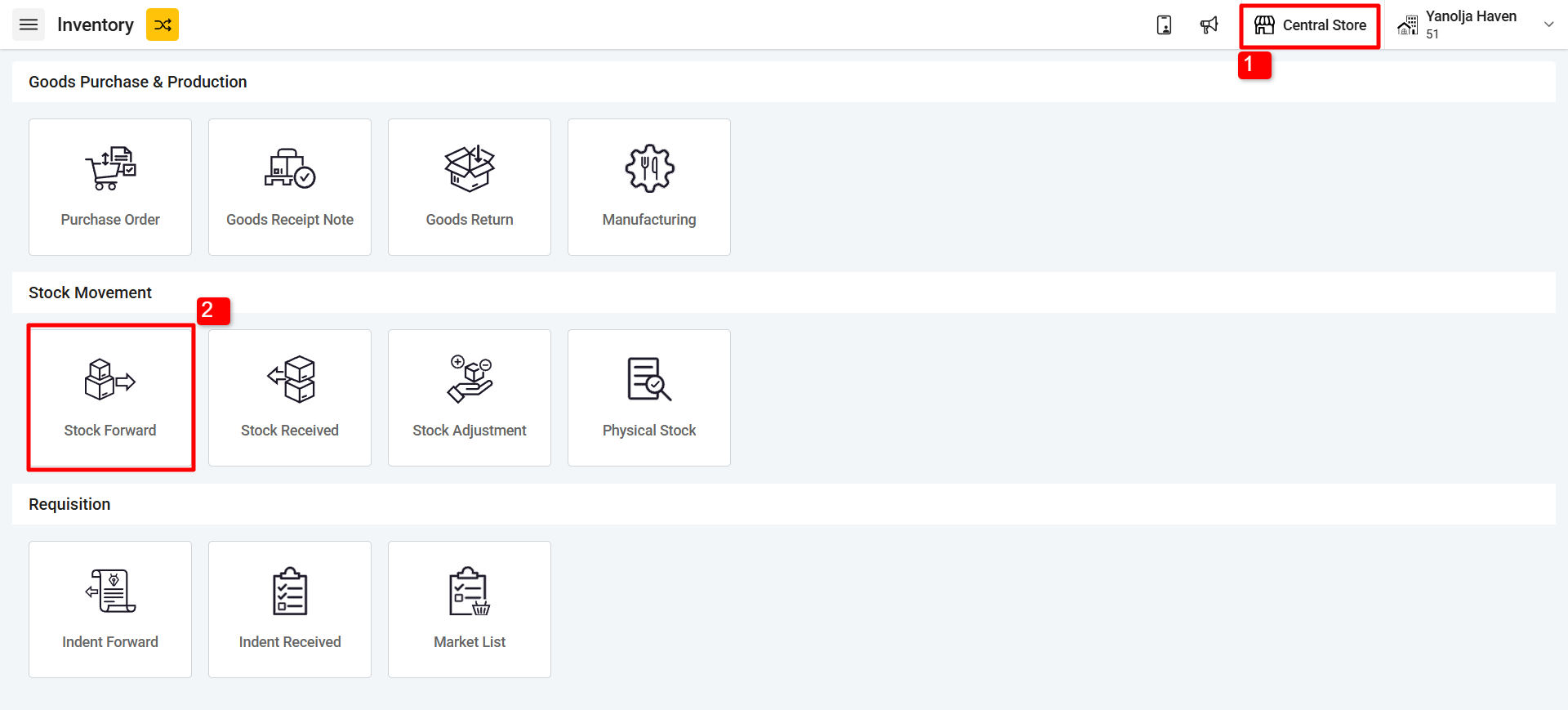
1. Open the Store from where you will be transferring the stock
2. Click on “Stock Forward” option in Inventory Module
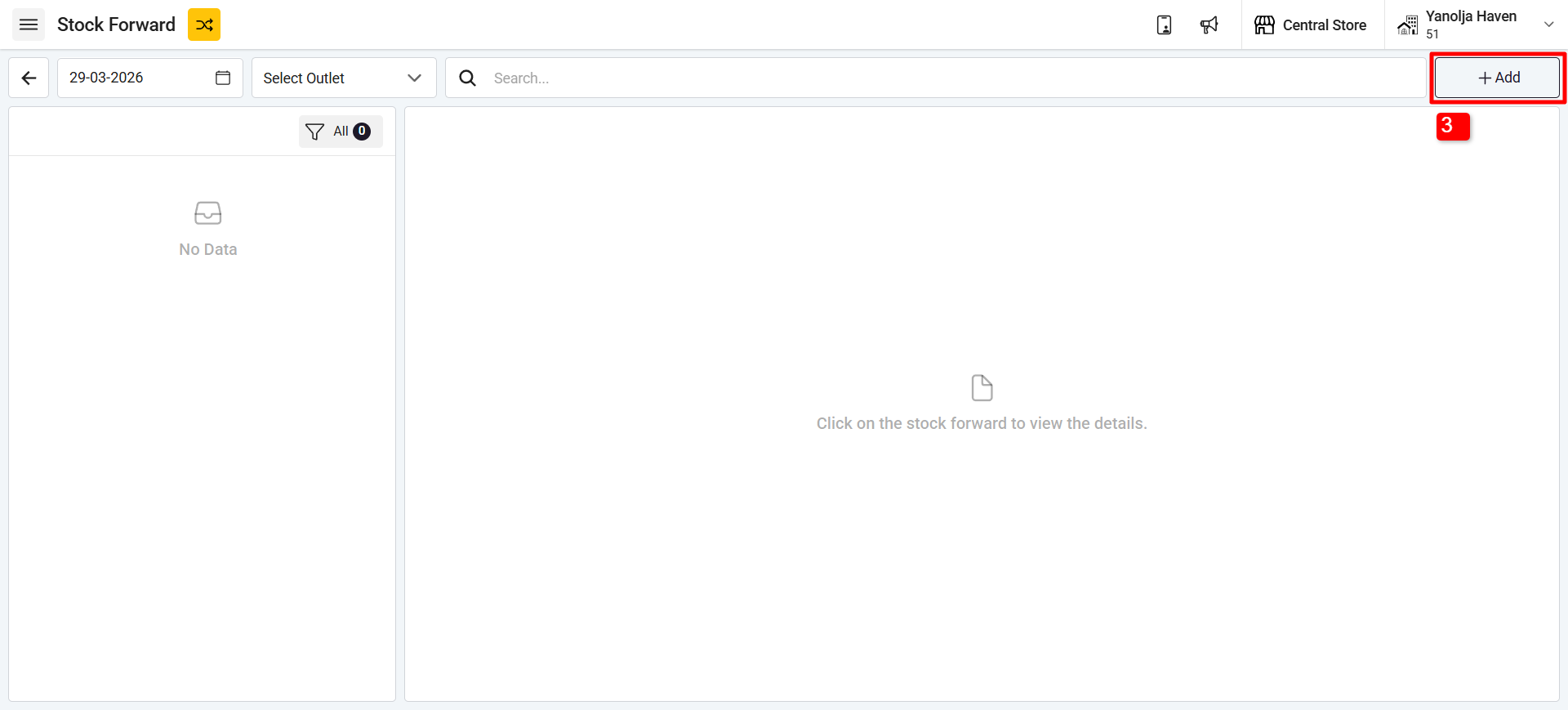
3. Click on the (+Add) button at the top to create a new stock transfer.
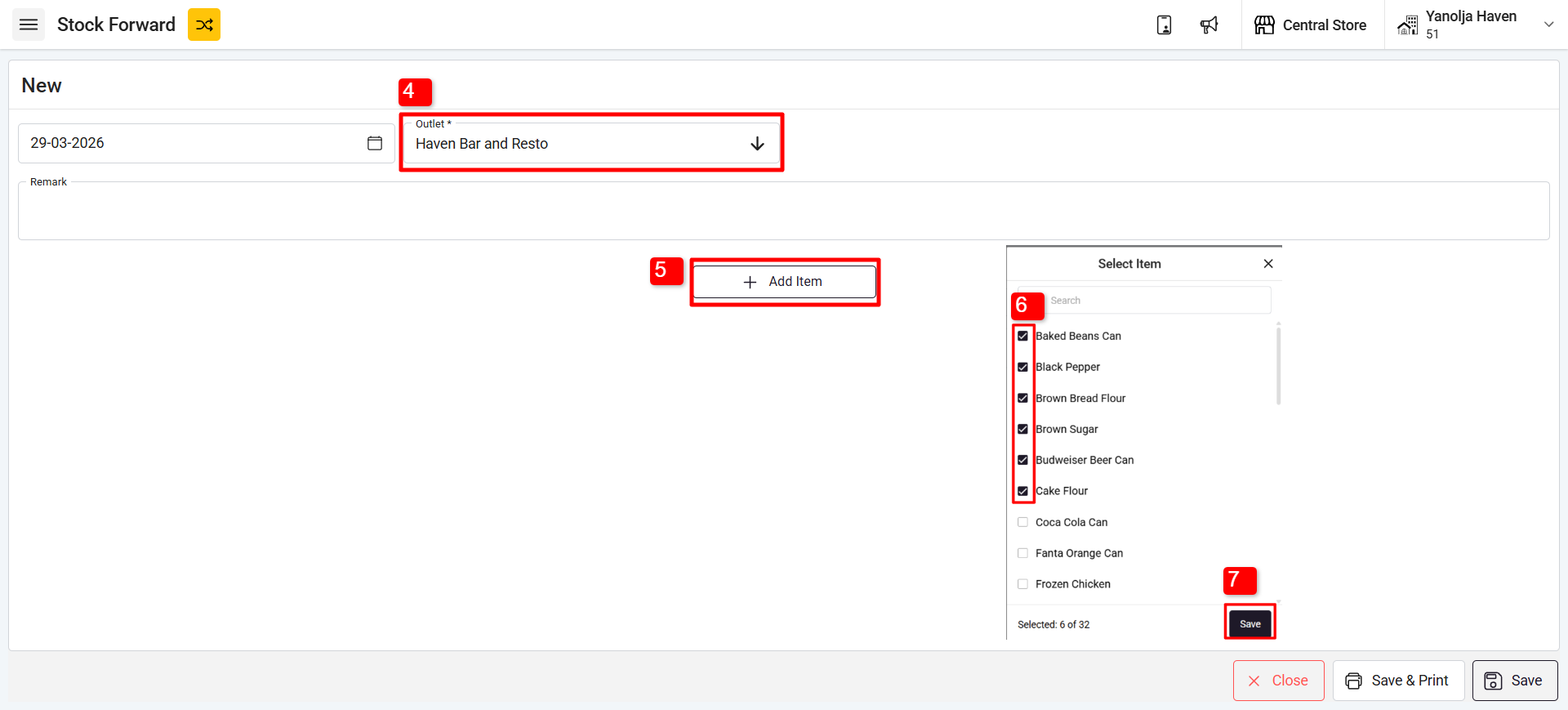
4. From the dropdown list, select the store/outlet to which you want to transfer the stock.
5. Click on Add Item.
6. Select the Items.
7. Click on Save
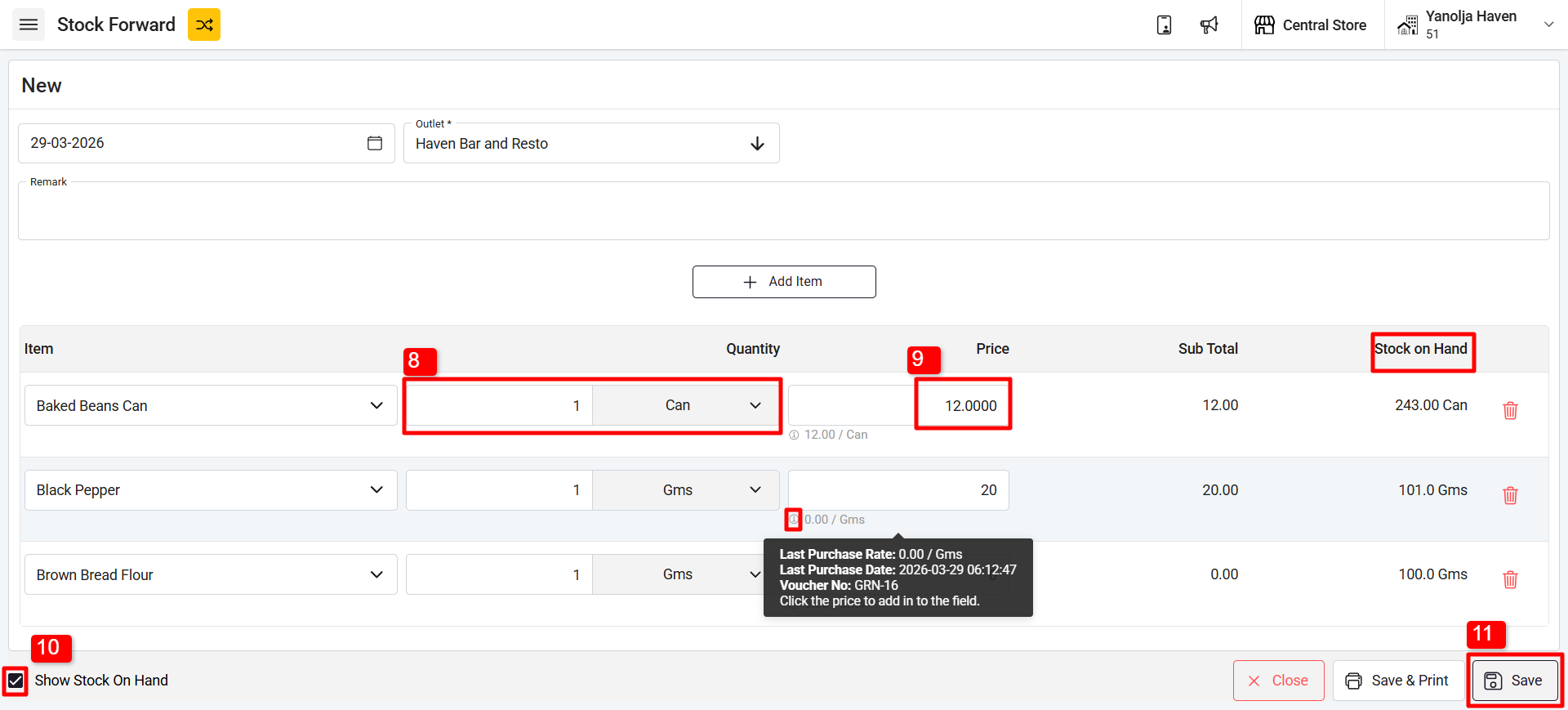
8. Enter the quantity of each item you want to transfer, select the appropriate unit.
9. Add the Prices of the stock
Note: The last purchase rate (if available) will be automatically fetched, and you can edit the price if needed.
10. You can also click on Show Stock On Hand to view the current stock.
11.Once the item details and quantities are updated, click on Save to complete the stock transfer.
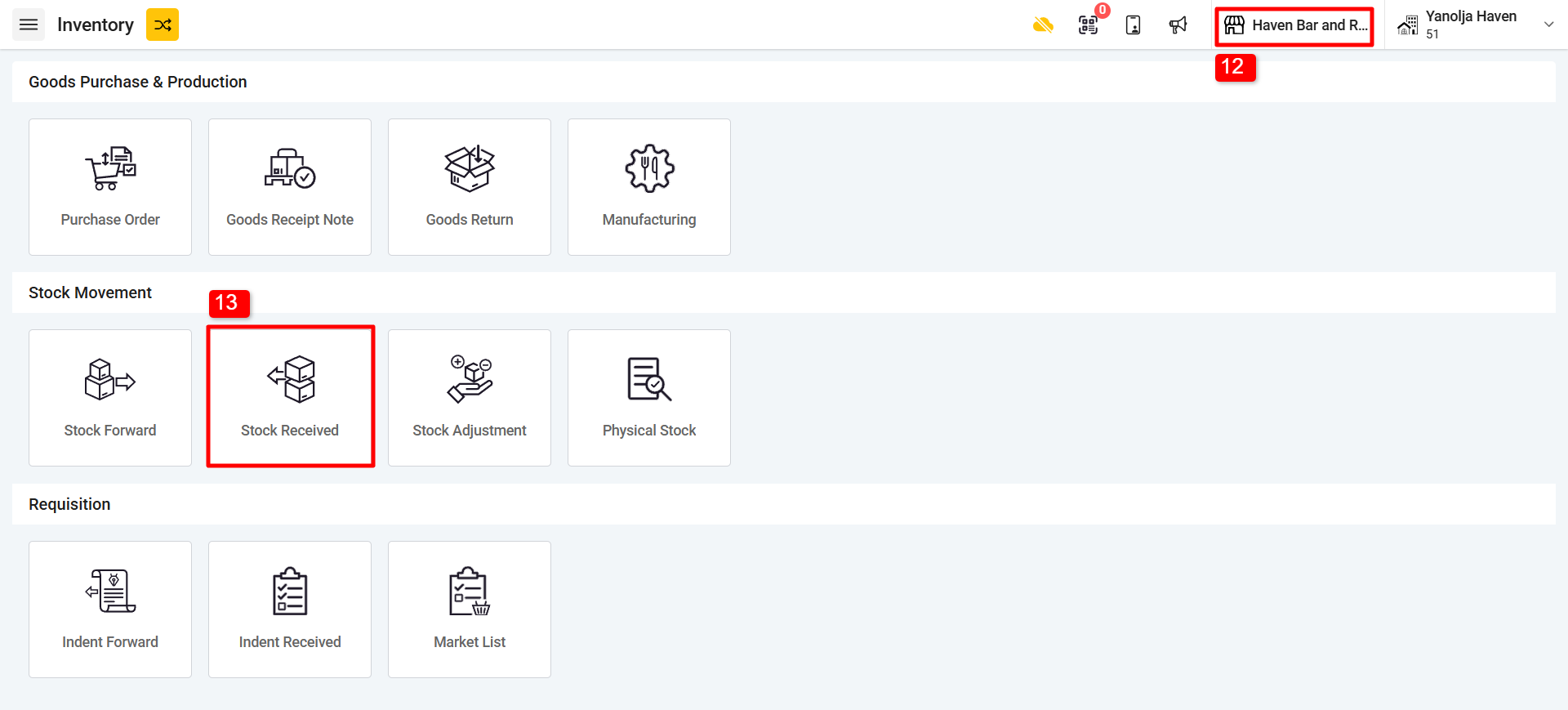
12. Switch back to the outlet where you have transferred the Stock
13. Click on “Stock Received”.
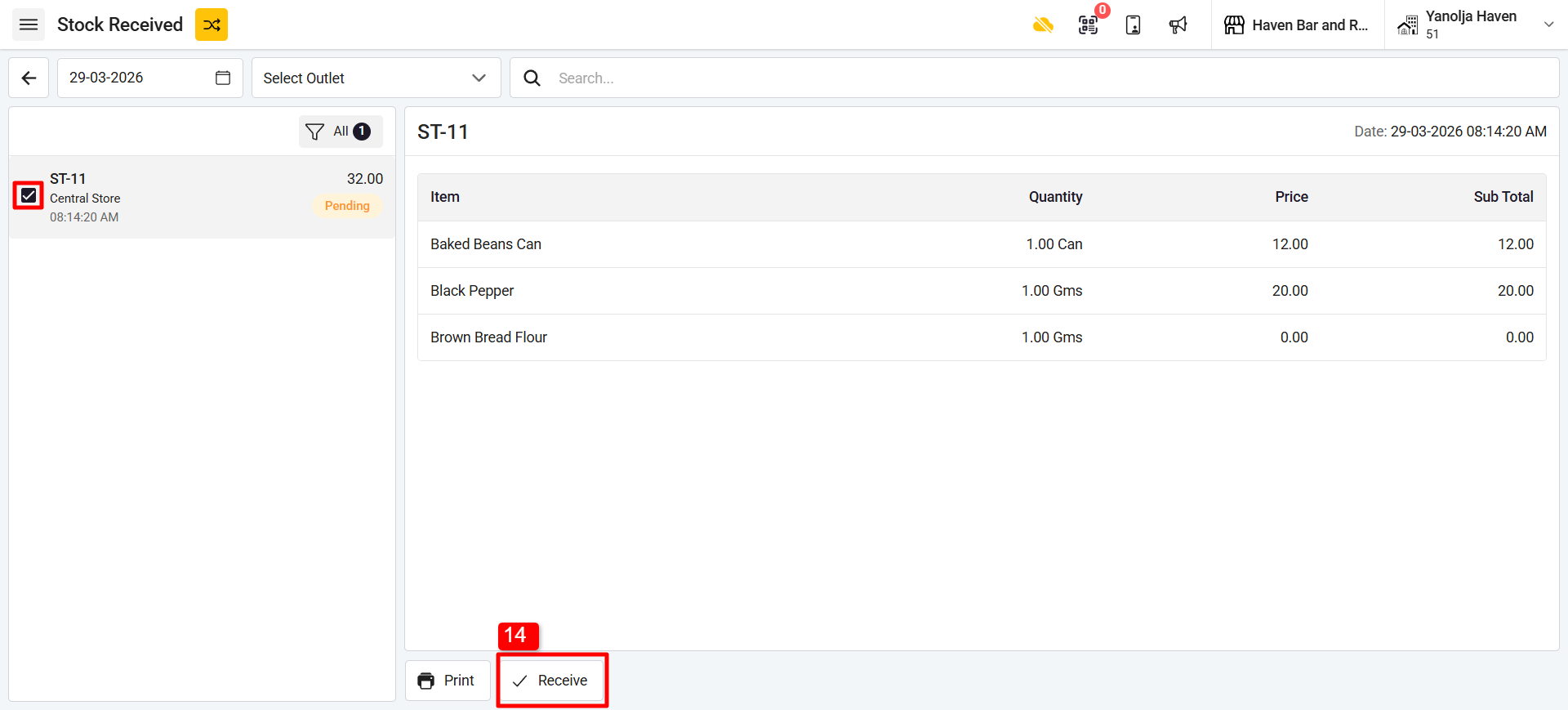
14. Select on Receive and the stock transfer will be completed.
Related Articles
Stock Ledger Report in POS
What is a Stock Ledger Report? A Stock Ledger Report is a detailed record of all transactions affecting inventory items in an organization. It tracks all changes in stock levels due to various operations such as stock in, stock out, stock ...How to Perform Indent/Requisition in POS
Q: What is Indent ? Ans: Indent is basically a list raised by employees of an Main Store asking for materials needed which are present in the store. The indents can be raised by any employee when he requires item from the stores. Q. How to Create an ...How to create a Purchase order (PO) and Goods Receipt Note (GRN) in POS
Purchase order (PO): A purchase order (PO) is a commercial document and first official offer issued by a buyer to a seller indicating types, quantities, and agreed prices for products or services. Goods Receipt Note (GRN): The goods receipt note is ...How to add menu item BOM( Bill of material/ Inventory Consumption) in POS
What is menu item BOM - Inventory Consumption? When we punch menu item in the outlet, our store item got reduce to make item. Set menu item BOM to manage inventory consumption. Example, Sell a sandwich from POS so we will add sandwich's ingredients ...How to add a table and sort the table in Restaurant POS
Steps to add a table: Switch to POS Backend. 2. Open Table management, Select the outlet to which you want to add the table, 3. Define the floor in which you want to add the table. 4. Add the table, Define the name of the table, Shortcode for display ...