How to create a Purchase order (PO) and Goods Receipt Note (GRN) in POS
Purchase order (PO): A purchase order (PO) is a commercial document and first official offer issued by a buyer to a seller indicating types, quantities, and agreed prices for products or services.
Goods Receipt Note (GRN): The goods receipt note is an internal document produced after inspecting delivery for proof of order receipt. Generally produced by stores team.
Privilege: Switch to Back>>Edit user>> Privilege>> Front office>> Purchase order>>Goods Receipt note
Steps to create PO:
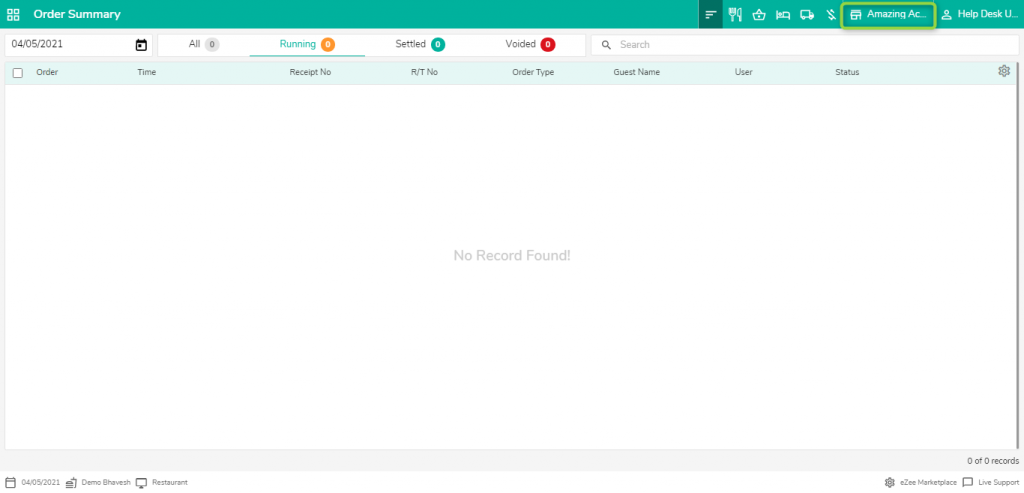
- Select the Store from you want to create Purchase order
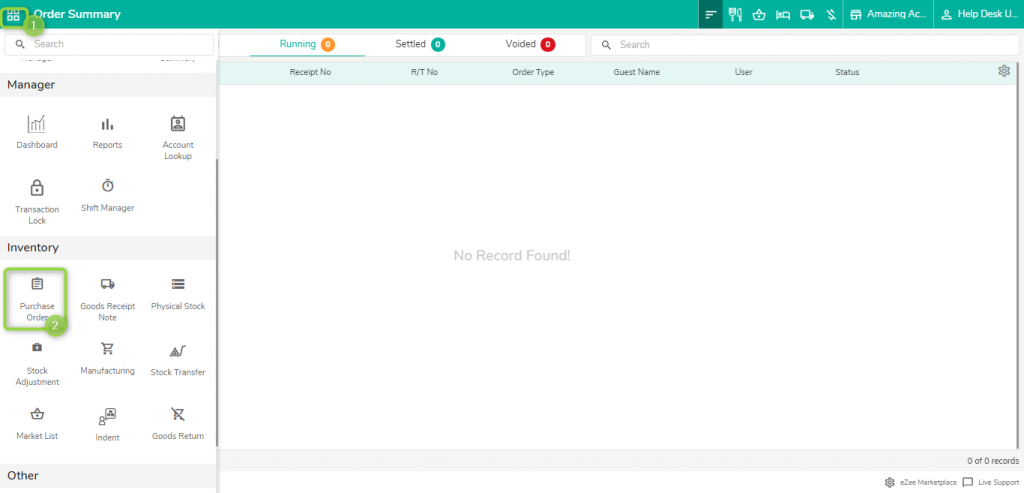
2. Click on Purchase order
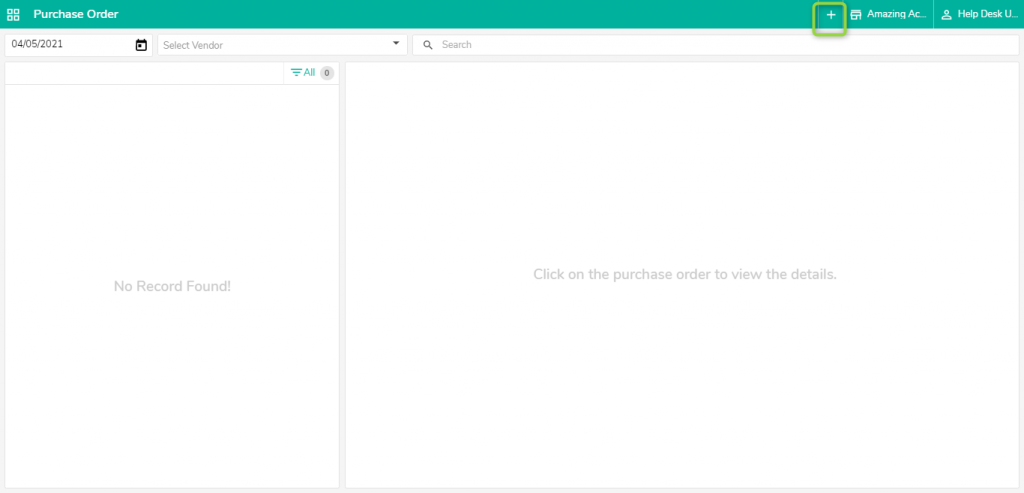
3. Click on (+) sign
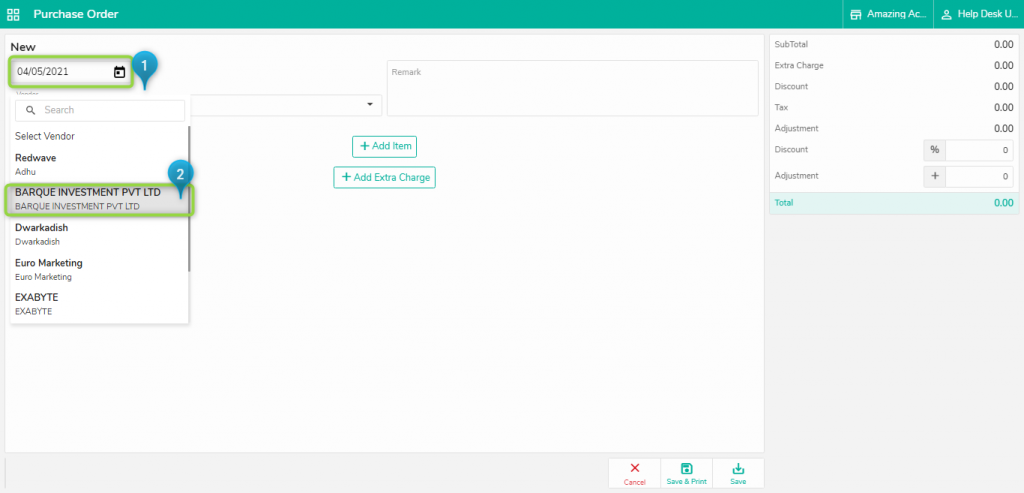
4. Select the date and supplier name
5. Add items you want to order from Selected supplier.
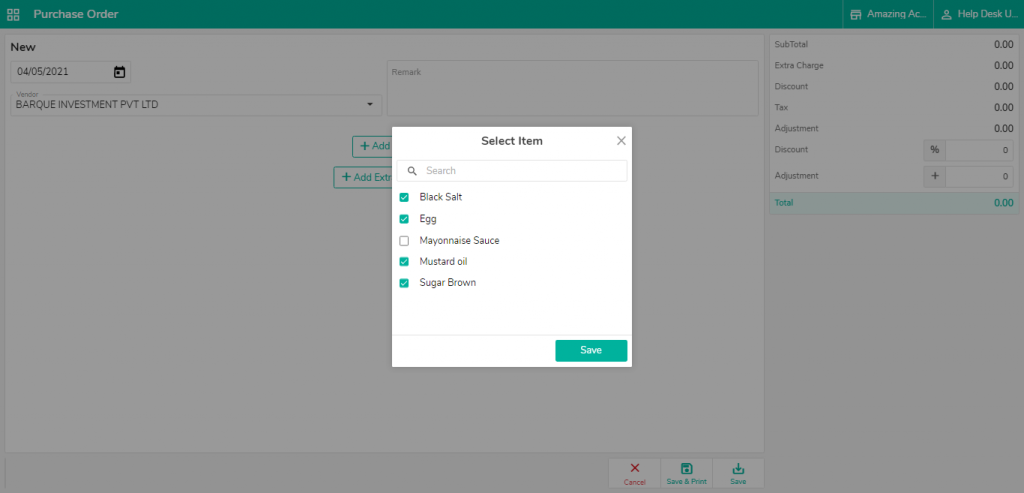
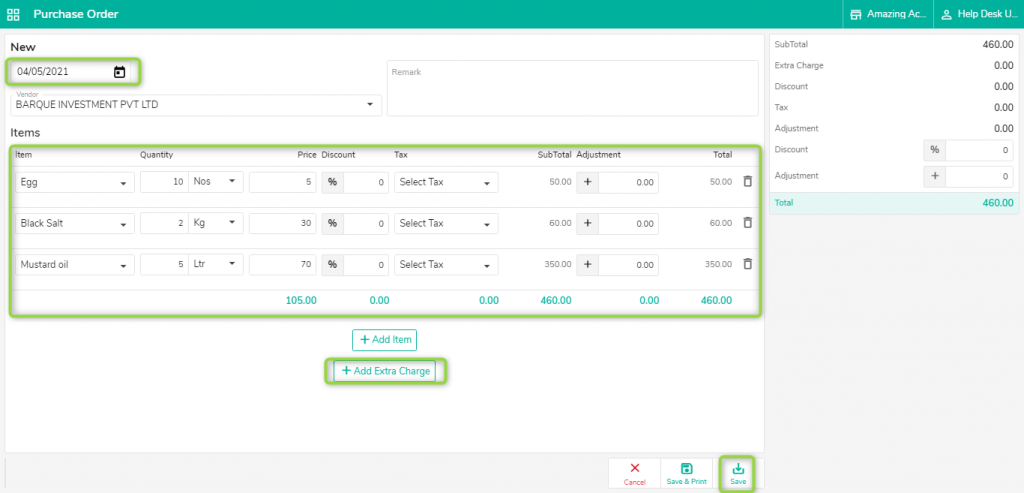
6. Once items are added, add the Quantity and price of it and apply the tax (if required), click on Save or Save&Print ( for printing of purchase order voucher)
you can also add extra charge ( Transportation charges ) .
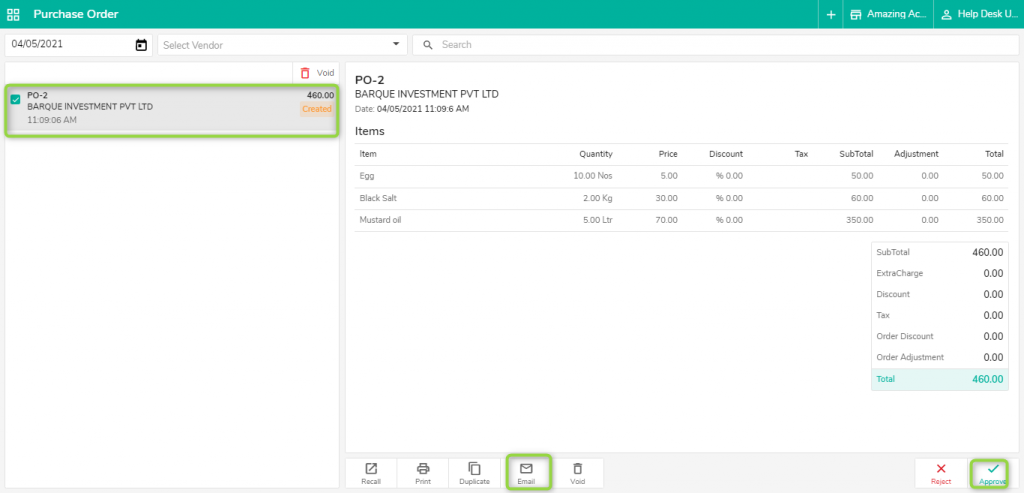
7. Once it is created, there would be an option to approve as it has to be approved. Purchase order approval is the flow of actions required from various stakeholders to validate a PO and bring it into effect.
With an efficient purchase approval process, you can control costs and stock.
you can also send purchase order voucher email to supplier.
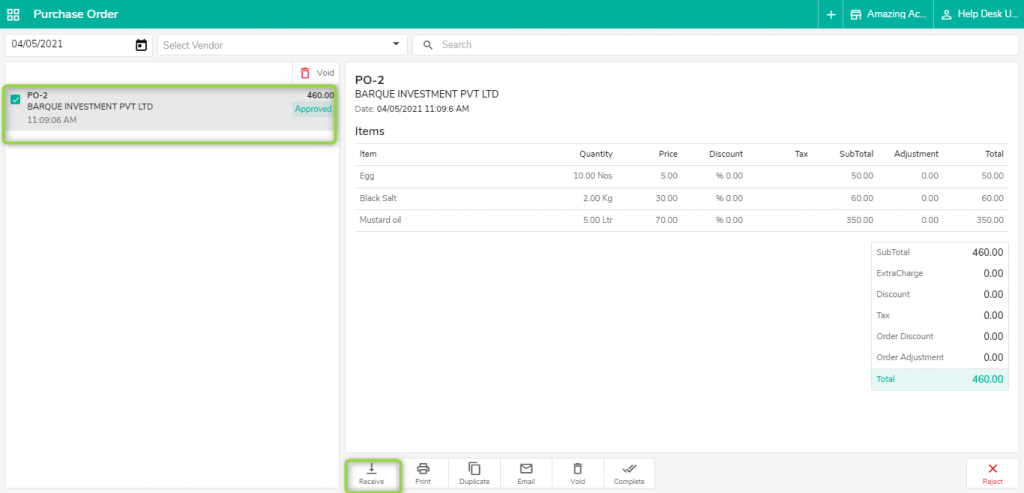
8. Once it is done, Now you can receive the goods from the supplier for the given order. It means you can create a Goods receipt note (GRN) of the given Purchase order.
9. You can select the item and Quantity you received against order quantity
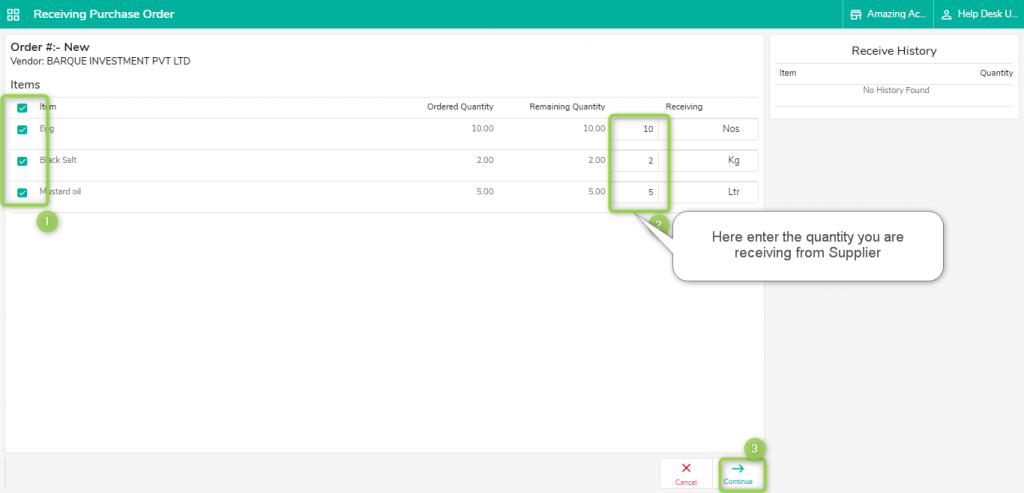
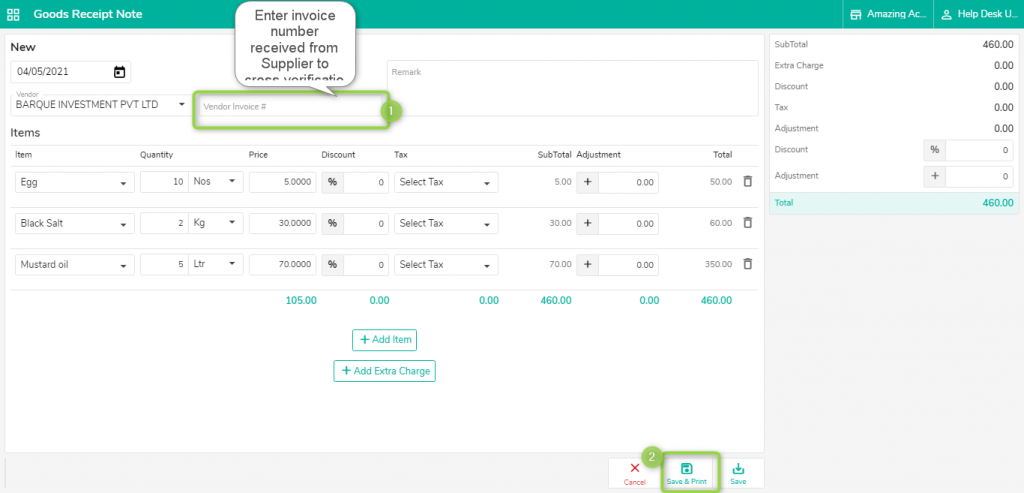
10. Enter the Invoice number received from the supplier and you can also make order modifications based on the requirement.
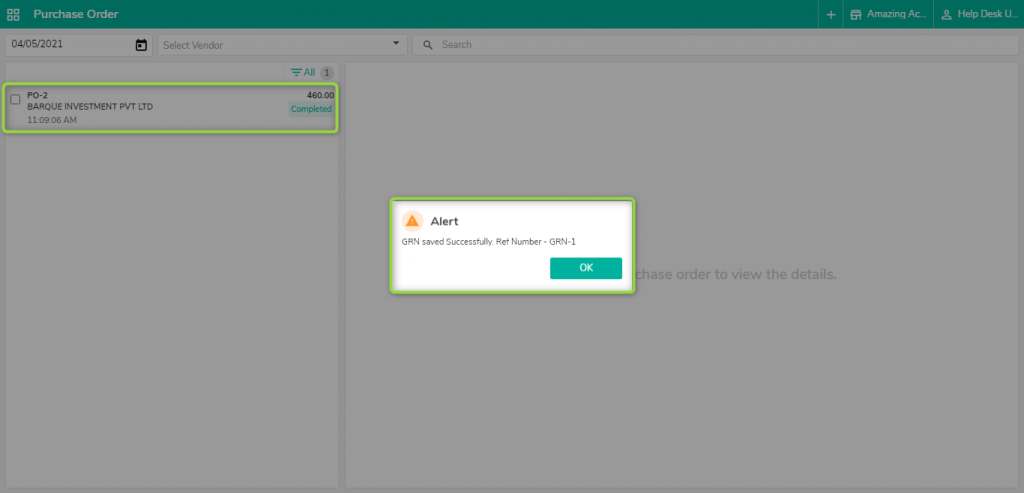
11. Once it is done, it will show you message GRN is created successfully and Stock of ordered items will be added in Store.
Related Articles
How to Merge Orders in POS
What does the Marge Option do? If we wanted to combine different orders, we can use the merge option on the Optimus side. How to perform the merge Operation Step 1: Click on the Order summary Step 2: Now, choose the orders you wish to merge and click ...How to add session(i.e Happy Hour) and set session rate in POS?
What is Session, Happy Hours, or Cocktail Hours? POS offers discounts in a period of time or season called Happy hour. It can be unlimited food offers, Combo Offers, Free Drinks, discounted menu items, Weekend Offers, etc. Location: eZee Optimus >> ...How to add menu item BOM( Bill of material/ Inventory Consumption) in POS
What is menu item BOM - Inventory Consumption? When we punch menu item in the outlet, our store item got reduce to make item. Set menu item BOM to manage inventory consumption. Example, Sell a sandwich from POS so we will add sandwich's ingredients ...How to do the Stock Transfer Between Stores(Departments) in POS
Steps to Transfer or Issue Stock: 1. Open the Store from where you will be transferring the stock 2. Click on “Stock Forward” option in Inventory Module 3. Click on the (+Add) button at the top to create a new stock transfer. 4. From the dropdown ...How To Enable The No Charge Module And How To Take No Charge Orders In POS
What is a No Charge Account? This account is used for the employees of the restaurant or the guest for which you do not wish to charge(i,e guests on fullboard or halfboard). You can use this order as a complimentary for persons like Restaurant Staff, ...